Dell™ PowerEdge™ 2550 Systems Installation and Troubleshooting Guide
This section provides troubleshooting procedures for equipment that connects directly to the input/output (I/O) panel of the system, such as the monitor, keyboard, mouse, or printer. Before you perform any of the procedures in the present section, see "Checking Connections and Switches" in "Checking the Basics." Then follow the troubleshooting procedures for the equipment that is malfunctioning.
You need the following items to perform the procedures in this section:
 |
NOTE: When you see the question "Is the problem resolved?" in a troubleshooting procedure, perform the operation that caused the problem. |
Troubleshooting video problems involves determining which of the following items is the source of the problem:
If information on the monitor screen is displayed incorrectly or not at all, perform the following steps to solve the problem:
Is the problem resolved?
Yes. You have fixed the problem.
No. Go to step 2.
Is the monitor displaying text properly?
Yes. Go to step 3.
No. If a video expansion card is installed in the system, see "Troubleshooting Expansion Cards" in "Checking Inside the System." If no video expansion card is installed, the integrated video controller is faulty; see "Getting Help" for instructions on obtaining technical assistance.
Did the tests run successfully?
Yes. You have fixed the problem, or the problem is software-related. For information about installing video drivers, see "Using the Dell OpenManage Server Assistant CD" in the User's Guide.
No. Go to step 4.
Did the tests run successfully?
Yes. The monitor must be replaced. See "Getting Help" for instructions on obtaining technical assistance.
No. If a video expansion card is installed in the system, see "Troubleshooting Expansion Cards" in "Checking Inside the System." If no video expansion card is installed, the integrated video controller is faulty; see "Getting Help" for instructions on obtaining technical assistance.
This procedure determines what kind of keyboard problem you may have. If a system error message indicates a keyboard problem when you start the system or while the Dell Diagnostics is running, perform the following steps:
Press and release each key on the keyboard.
Do the keyboard and its cable appear to be free of physical damage, and do the keys work?
Yes. Go to step 3.
No. Go to step 2.
Is the problem resolved?
Yes. The keyboard must be replaced. See "Getting Help" for instructions on obtaining technical assistance.
No. Go to step 3.
Can you use the keyboard to select the keyboard test?
Yes. Go to step 5.
No. Go to step 4.
Yes. The keyboard must be replaced. See "Getting Help" for instructions on obtaining technical assistance.
No. The keyboard controller on the system board is faulty. See "Getting Help" for instructions on obtaining technical assistance.
This procedure determines whether the system's basic I/O functions are operational. If a system error message indicates an I/O port problem or the device connected to the port does not function properly, perform the following steps:
Are the communications and mouse ports enabled?
Yes. Go to step 3.
No. Go to step 2.
Is the problem resolved?
Yes. You have fixed the problem.
No. Go to step 3.
Are the port configuration commands correct?
Yes. Go to step 5.
No. Go to step 4.
Is the problem resolved?
Yes. You have fixed the problem.
No. Go to step 5.
Did the tests run successfully?
Yes. Go to step 6.
No. See "Getting Help" for instructions on obtaining technical assistance.
If the procedure in "Troubleshooting the Basic I/O Functions" indicates that the problem is with a parallel printer, perform the following steps:
Did the print operation run successfully?
Yes. The interface cable must be replaced. See "Getting Help" for instructions on obtaining technical assistance.
No. Go to step 5.
Did the self-test run successfully?
Yes. Go to step 6.
No. The printer is probably defective. If the printer was purchased from Dell, see "Getting Help" for instructions on obtaining technical assistance.
Did the print operation run successfully?
Yes. You have fixed the problem.
No. See "Getting Help" for instructions on obtaining technical assistance.
If the procedure in "Troubleshooting the Basic I/O Functions" indicates that the problem is with a device connected to one of the serial ports, perform the following steps:
Are two serial devices connected to the system?
Yes. Go to step 2.
No. Go to step 4.
Is the problem resolved?
Yes. The serial port may be defective. See "Getting Help" for instructions on obtaining technical assistance.
No. Go to step 4.
Is the problem resolved?
Yes. The interface cable must be replaced. See "Getting Help" for instructions on obtaining technical assistance.
No. Go to step 5.
For example, if you are troubleshooting a serial mouse, swap it with a serial mouse that you know is working properly.
Is the problem resolved?
Yes. The serial device must be replaced. See "Getting Help" for instructions on obtaining technical assistance.
No. See "Getting Help" for instructions on obtaining technical assistance.
If a system error message indicates a problem with the Universal Serial Bus (USB) ports or a device connected to the port does not function properly, perform the following steps:
Are two USB devices connected to the system?
Yes. Go to step 3.
No. Go to step 5.
Is the problem resolved?
Yes. The USB port may be defective. See "Getting Help" for instructions on obtaining technical assistance.
No. Go to step 5.
Is the problem resolved?
Yes. The interface cable must be replaced. See "Getting Help" for instructions on obtaining technical assistance.
No. Go to step 6.
Is the problem resolved?
Yes. The USB device must be replaced. See "Getting Help" for instructions on obtaining technical assistance.
No. See "Getting Help" for instructions on obtaining technical assistance.
If you encounter problems with one of the system's integrated network interface controllers (NICs), the following actions may help you to diagnose the problem:
See "Using the System Setup Program" in the User's Guide for instructions.
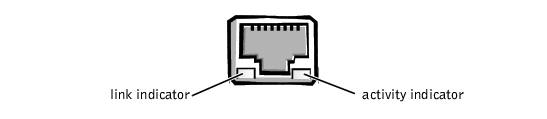
The green link indicator (the indicator on the left) lights if the adapter is connected to a valid link partner. The amber activity indicator lights if network data is being sent or received.
- If the link indicator is not on, check all connections at the adapter and link partner.
- Try changing the auto-negotiation setting on the link partner, if possible.
- Try another port on the network switch.
